Even the strongest design can sometimes feel like it’s wearing the wrong colors. A project that looked perfect during creation may need a completely different mood, atmosphere, or visual identity once it’s reviewed. Traditionally, making those adjustments meant navigating complex color theory principles and manually editing individual elements—a process that can quickly become tedious.
Adobe Illustrator’s Generative Recolor tool simplifies that challenge. Instead of painstakingly adjusting every shade by hand, you can describe the look you’re aiming for and let Illustrator generate fresh color palettes automatically. The feature makes experimenting with different visual directions remarkably fast, making it especially useful when developing concepts for clients or exploring multiple creative options.
Whether you’re searching for a subtle refresh or a dramatic transformation, Generative Recolor offers a quick way to reimagine your artwork without rebuilding it from scratch.
Below is a step-by-step guide to getting started.
01. Open the Recolor panel
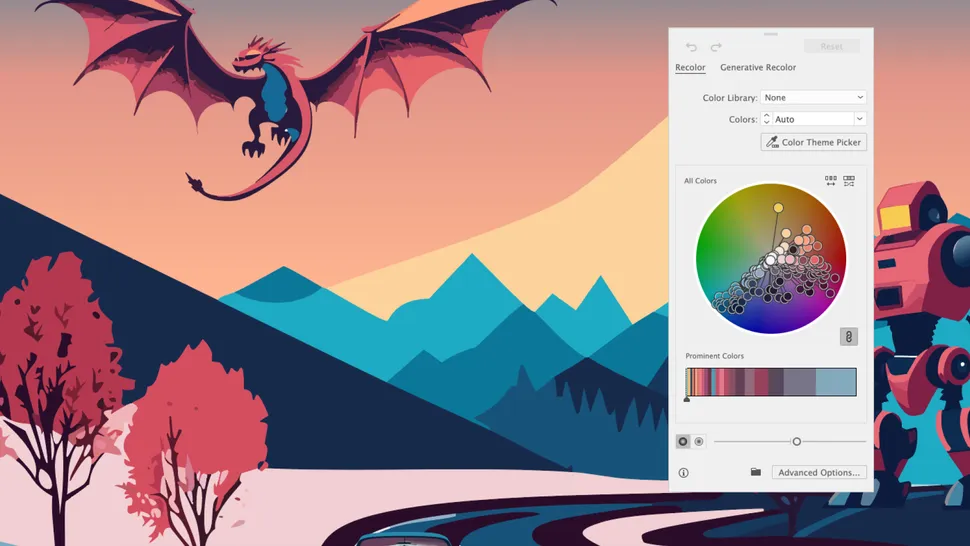
Begin by selecting the entire illustration, graphic, or design you want to modify.
Once selected, the Contextual Task Bar will appear. Click the Recolor button, then choose the Generative Recolor tab within the Recolor panel.
You can also access the same controls through the menu by navigating to Edit > Edit Colors.
This opens the workspace where Illustrator’s AI-powered color generation tools are located.
02. Explore sample prompts

If inspiration is running low, Illustrator provides a collection of built-in Sample Prompts to help spark ideas.
These examples showcase a variety of moods, themes, and contrasting color directions, offering a quick glimpse into how dramatically a design can change with a different palette. Browsing through them can reveal unexpected creative possibilities and help guide your own prompt writing.
Think of them as color mood boards designed to kickstart experimentation.
03. Generate new color schemes with text prompts

When you have a specific style or atmosphere in mind, enter a short descriptive prompt into the text field and click Generate.
Much like Illustrator’s Text to Vector feature, Generative Recolor produces three distinct results based on your instructions. You can cycle through the options, compare the outcomes, and choose the version that best matches your vision.
For users who want even greater precision, the tool also includes Advanced Options that allow for deeper customization and more refined control over the generated color palette.
The result is a faster, more flexible way to test creative directions—transforming the emotional tone of a project in seconds rather than hours.