Adobe Illustrator’s Retype tool offers a fast and convenient way to identify fonts that have been converted into outlines within static artwork and turn them back into editable text. The feature scans both Adobe Fonts and the font library installed on your computer, searching for the closest possible matches.
While it may not always pinpoint the exact original typeface, Retype often delivers highly similar alternatives that can achieve the same visual effect. For designers, this can dramatically reduce the time spent hunting through endless font collections in search of the perfect match.
Few workflow frustrations compare to finding a typeface you love, only to discover that you don’t have access to it. Retype helps eliminate much of that guesswork by bringing potential matches directly to you, making font identification and experimentation significantly more efficient.
Below is a quick guide to using the feature.
How to use Adobe Illustrator’s Retype tool
01. Select outlined text and launch Retype
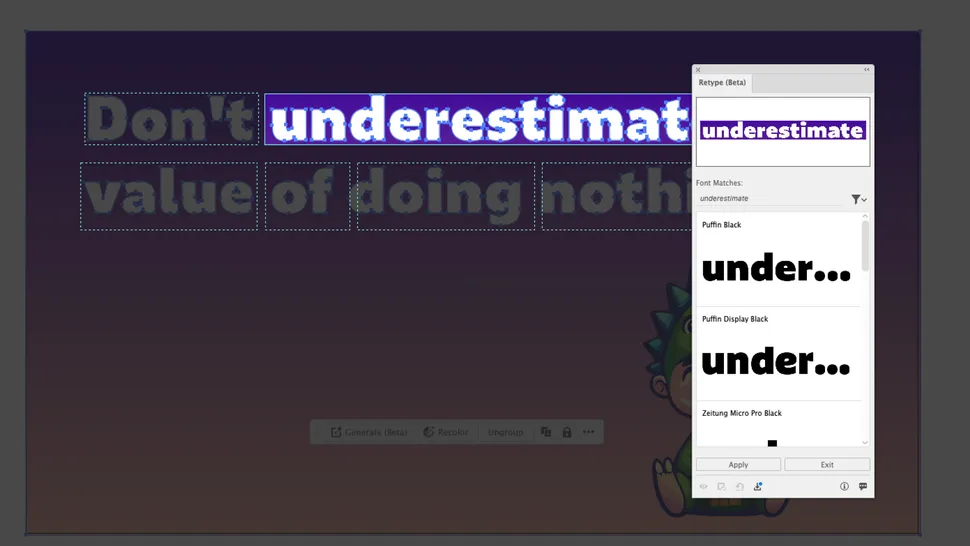
Begin by opening your graphic in Adobe Illustrator. Once the artwork is loaded, select the outlined text you want to identify.
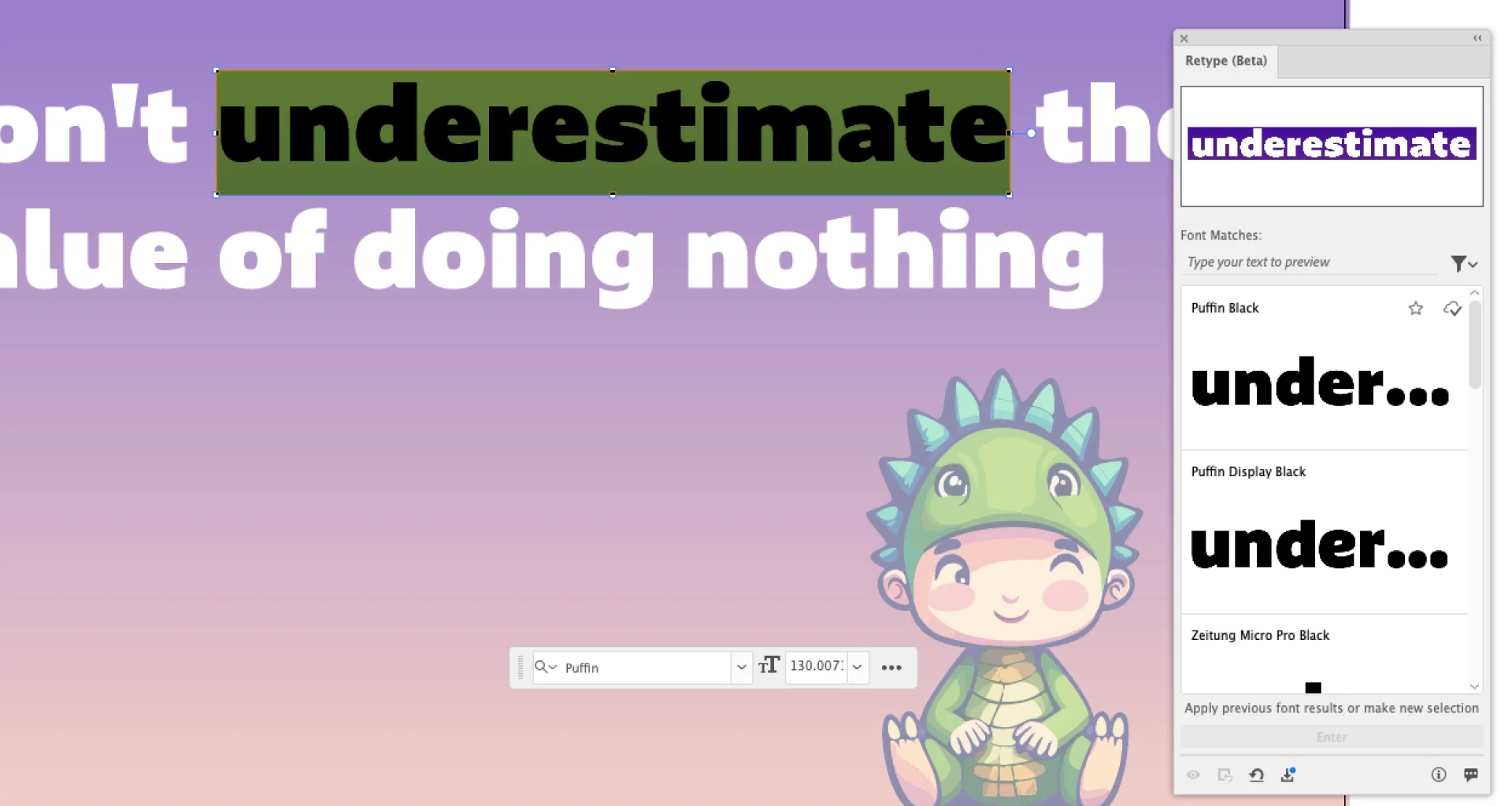
Next, navigate to Type > Retype (Beta).
Illustrator will analyze the selected text and compare its visual characteristics against available fonts. After processing, the tool presents a list of the closest matching typefaces it can find.
02. Convert and edit the text
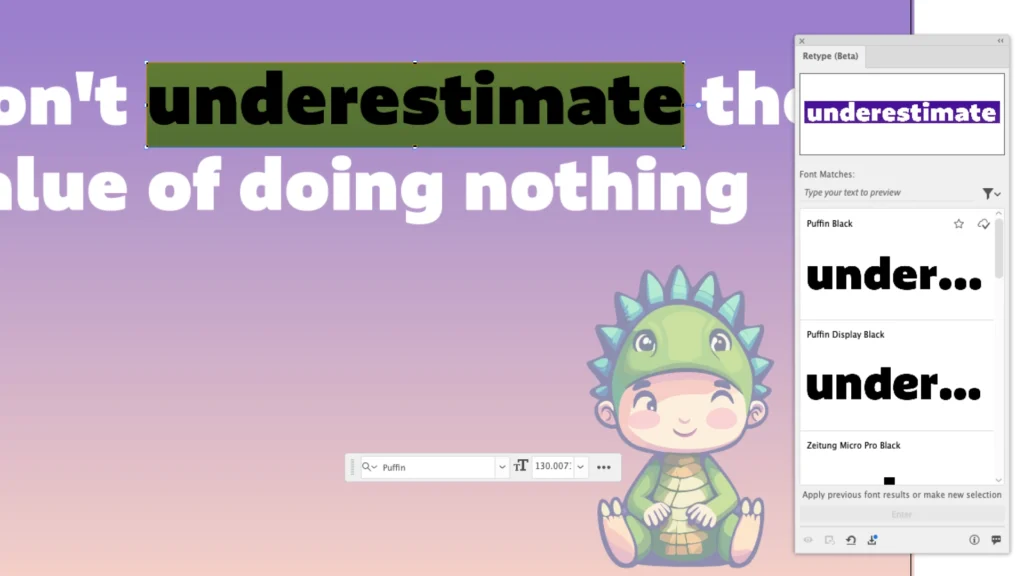
Review the suggested font options and choose the one that best matches the original design.
If you find an exact match—or a suitable alternative—you can click the font to download and apply it. Alternatively, double-click the selected text to begin editing.
Once Retype converts the outlined artwork into live, editable text, you can exit the Retype interface and continue making adjustments as you would with any standard text object in Illustrator.